Dashboard — your overview after every call
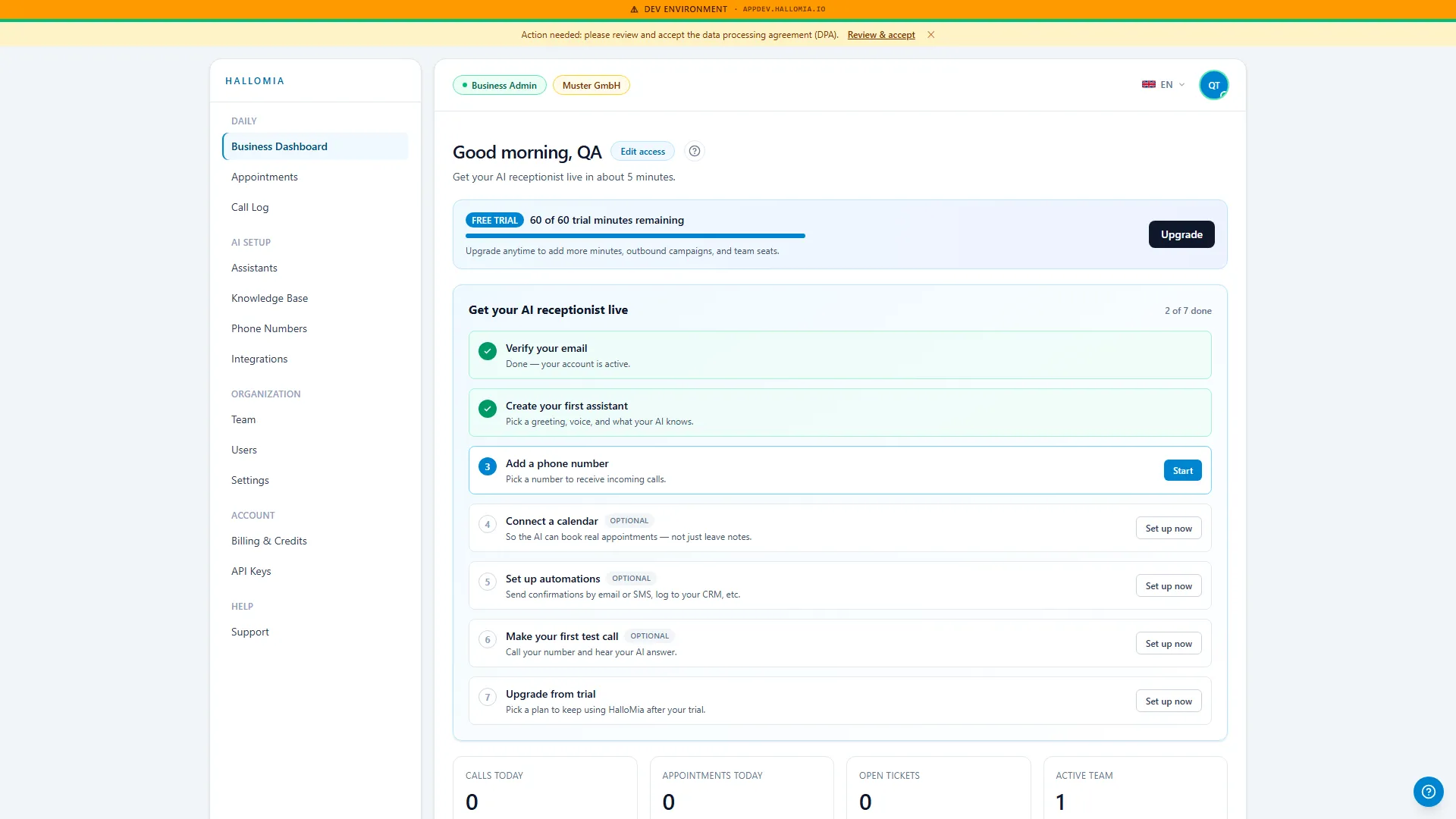
The dashboard is the first page you land on after signing in, and it answers the question you actually have in the morning: did anything slip through yesterday? It summarises your calls, appointments and current usage, and links straight through to the detail behind each one.
What does the dashboard show?
Section titled “What does the dashboard show?”The dashboard shows the current state of your account at a glance: your recent calls, the appointments that came out of them, and your usage against the plan you booked. Every tile is an entry point — one click takes you into the full list rather than leaving you alone with a number.
What can I do from here?
Section titled “What can I do from here?”- Follow up on recent calls — from the calls tile straight into the call log, including transcript and recording.
- Check appointments Mia booked on her own, before they show up in your team’s calendar — see Appointments.
- Keep an eye on usage and spot early whether your plan still matches your call volume.
- Jump back into setup if a step is still outstanding.
How should I read the numbers?
Section titled “How should I read the numbers?”The figures always refer to your organisation, not to individual people — a call counts once, no matter who follows up on it afterwards. What matters is the comparison over time: a single quiet day says little, while a week with markedly more calls than usual is a good reason to revisit your assistant’s conversation guide.
Why do the dashboard and the call log sometimes differ?
Section titled “Why do the dashboard and the call log sometimes differ?”Calls appear in the log once the conversation has ended and been processed, so immediately after a call it can take a moment for a dashboard figure to catch up. If you don’t see a fresh call yet, wait a moment and reload. If it is missing for good, Call log is empty takes it from there.
Does every team member see the same dashboard?
Section titled “Does every team member see the same dashboard?”Not necessarily. What someone sees depends on their role: a member with a reception role sees the day-to-day work, while administrative areas such as billing or API access stay with the roles entitled to them. You manage who has which role under Team.