Install the app and sign in
From install to your first notification is four steps and about two minutes.
1. Download the app
Section titled “1. Download the app”Open the store on your device and install HalloMia:
- iPhone and iPad: HalloMia on the App Store
- Android: HalloMia on Google Play
The app is free. Nothing is ever purchased inside it — your plan stays where it is and is managed in the browser.
2. Sign in
Section titled “2. Sign in”On first launch the app asks for your email address and password — the same ones you use in the browser. There is no separate app account and no second setup.
If you have forgotten your password, reset it once in the browser and then sign in on the app.
3. Set up the app lock
Section titled “3. Set up the app lock”After signing in, the app offers to protect itself with Face ID, Touch ID or your fingerprint. We recommend saying yes: the app holds your callers’ conversation content — names, requests, callback numbers. The lock applies every time you bring the app back to the foreground.
Your sign-in is then kept on the device, safely behind that lock. So you do not have to sign in again each time you open it.
4. Allow notifications
Section titled “4. Allow notifications”Your operating system asks once whether HalloMia may send you notifications. Say yes here — otherwise the most important part of the app stays silent, and you only learn about a call when you open the app yourself.
If you declined by accident, you can undo it in your device settings under Notifications → HalloMia. Which events trigger an alert is then set inside the app — see Notifications.
What do I see right after signing in?
Section titled “What do I see right after signing in?”The call list — and until a call has come in, it is empty. That is not a fault:
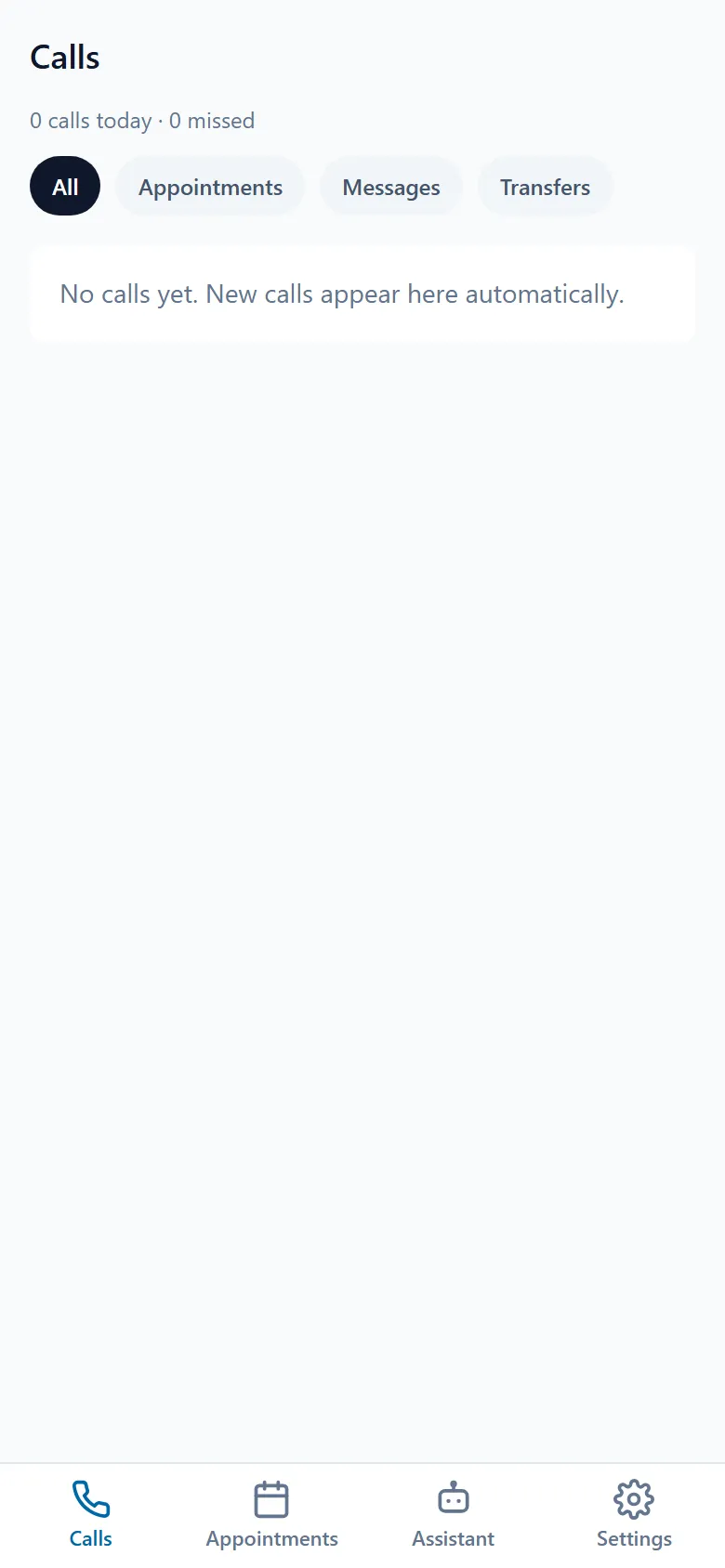
Along the bottom are the app’s four areas: Calls, Appointments, Assistant and Settings. As soon as the first call arrives, the list fills itself. If you would rather not wait, start a test call from the Assistant area.
Can I use the app on more than one device?
Section titled “Can I use the app on more than one device?”Yes. Just sign in on each device. Notifications go to every signed-in device, and your choice of which events should alert you applies across all of them.